
First-run setup
The first time you open Nexus it shows a full-window setup with four steps. A progress indicator at the bottom shows where you are, Back returns to the previous step, and Leave setup exits it. Every answer can be changed later in Settings.
Step 1: where your work lives
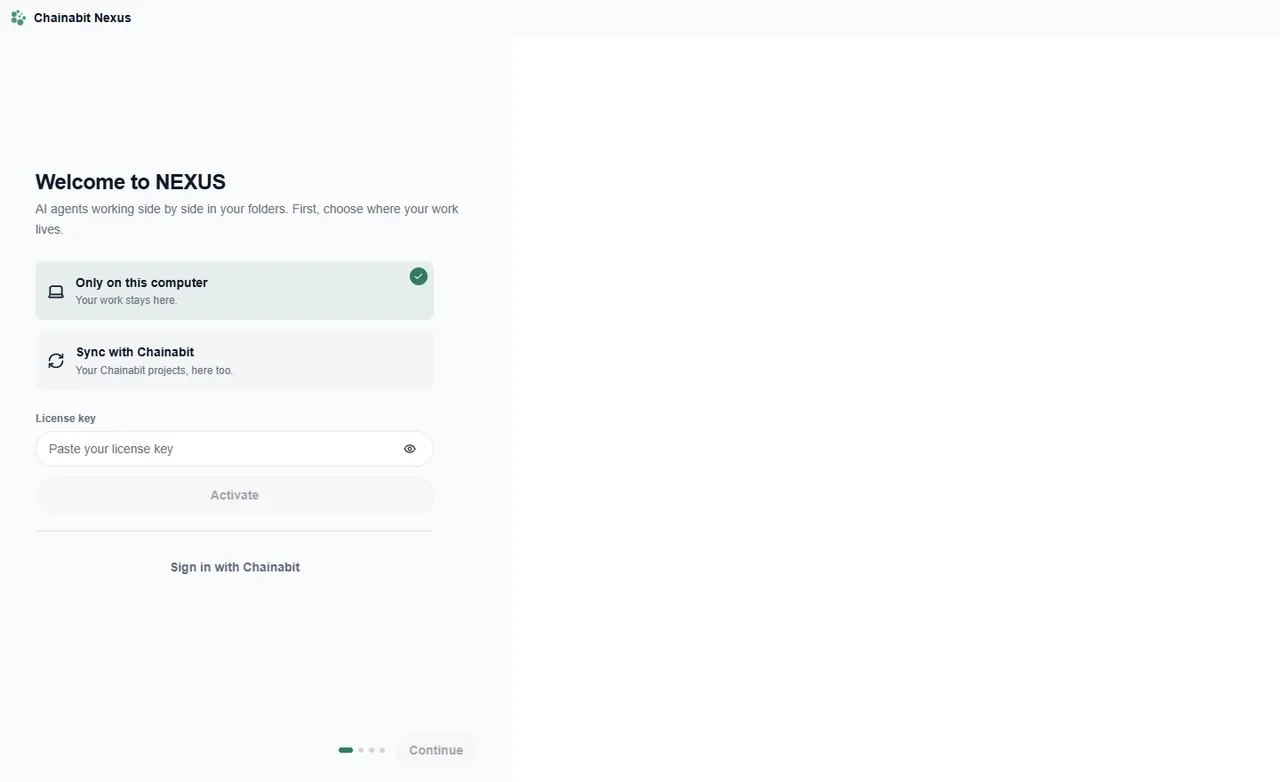
Choose one of two options:
- Only on this computer: your projects and tasks stay here. Nexus then offers a license key field (and Sign in with Chainabit as another way in).
- Sync with Chainabit: your Chainabit projects appear here too. You sign in with your Chainabit account.
Either way, Nexus needs access to continue: a license key or a plan that includes Nexus. See Sign in and license. When access is ready, Nexus says "NEXUS is ready on this computer." and Continue becomes available.
Step 2: your AI tools
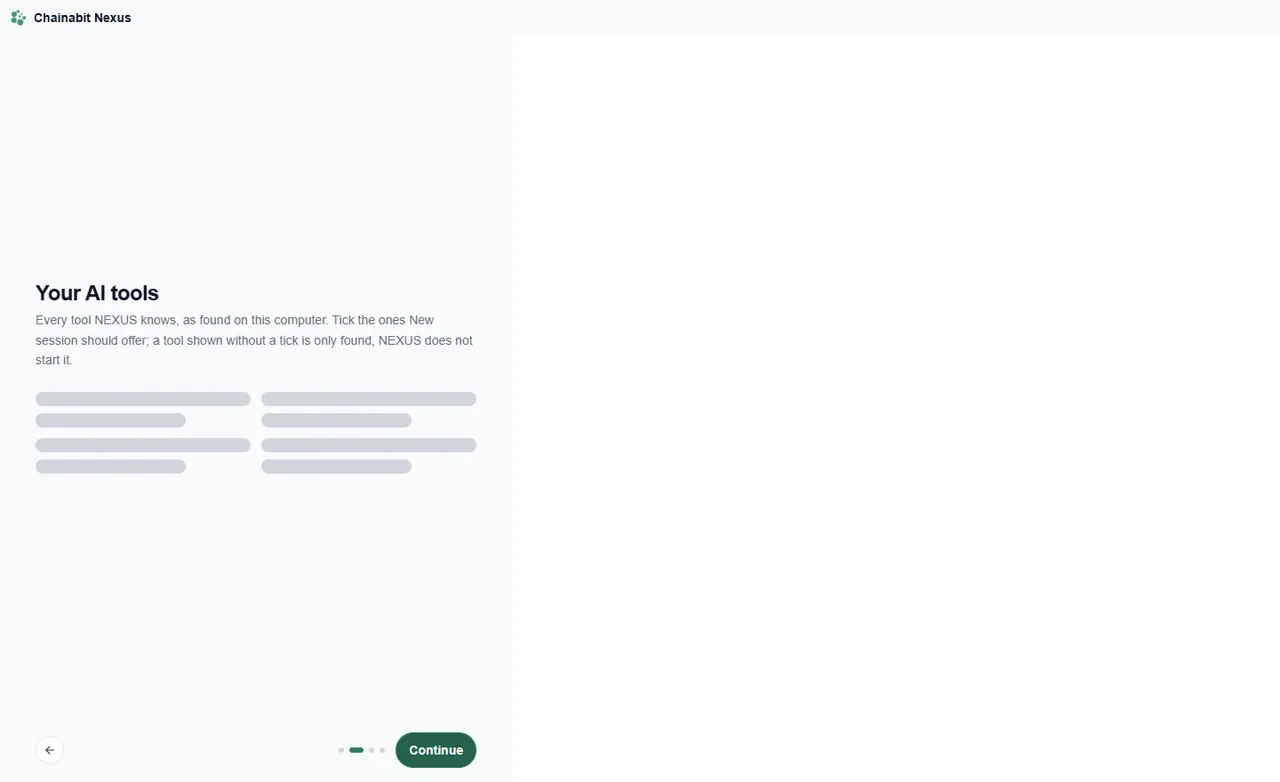
Nexus lists every tool it knows and shows what it found on this computer: Found with a version, or Not installed. Tick the tools that New session should offer. A tool shown without a tick is only found; Nexus does not start it. Ollama is marked Free · local.
If nothing is found yet, you can install a tool later and tick it in Settings or in Agents, on the AI tools tab.
Step 3: pick a project
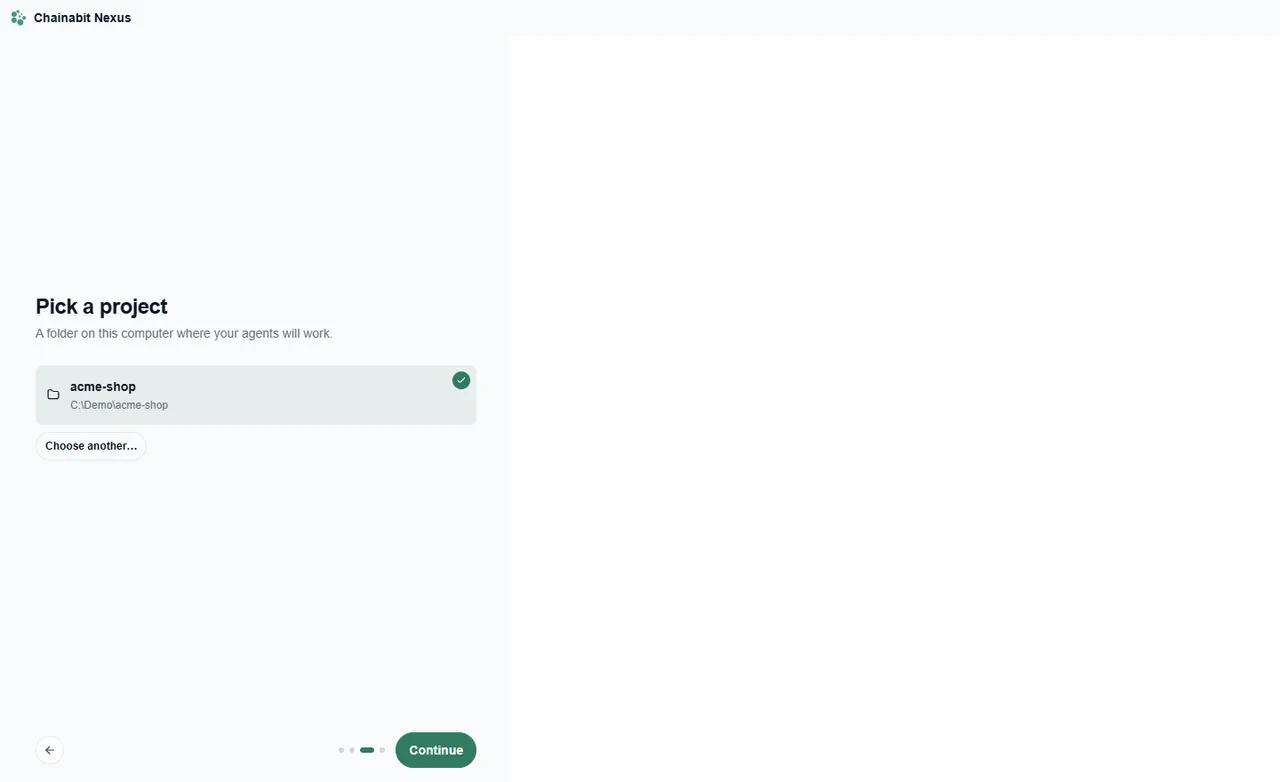
Choose a folder on this computer where your agents will work. Nexus lists recent repositories it finds, or you can choose Choose another…. Nexus creates a project for the folder.
Step 4: make it yours
Pick a Theme (match the system, light or dark) and choose whether agents open in a Terminal or in a Chat view. The chat view works with Agy, OpenCode and Hermes. Both apply at once.
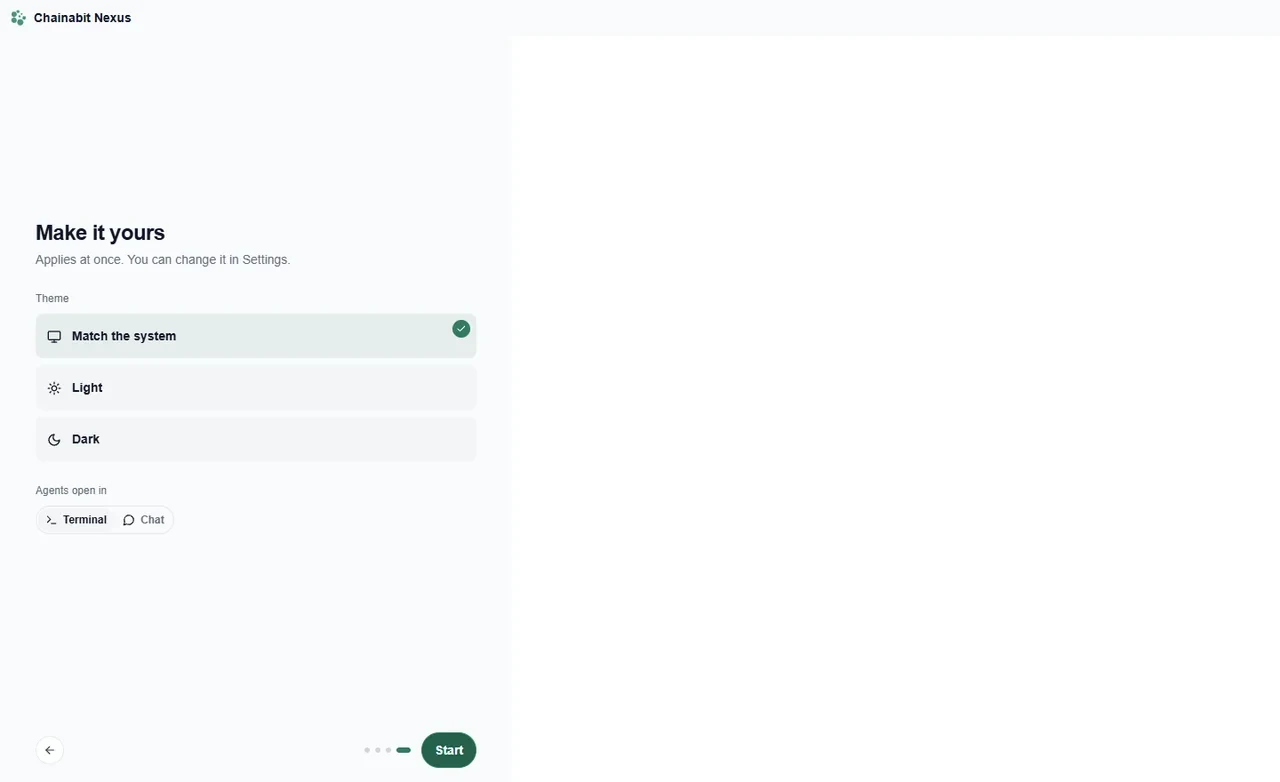
Choose Start to finish. Nexus says "NEXUS is set up. Here is a short tour."
The tour
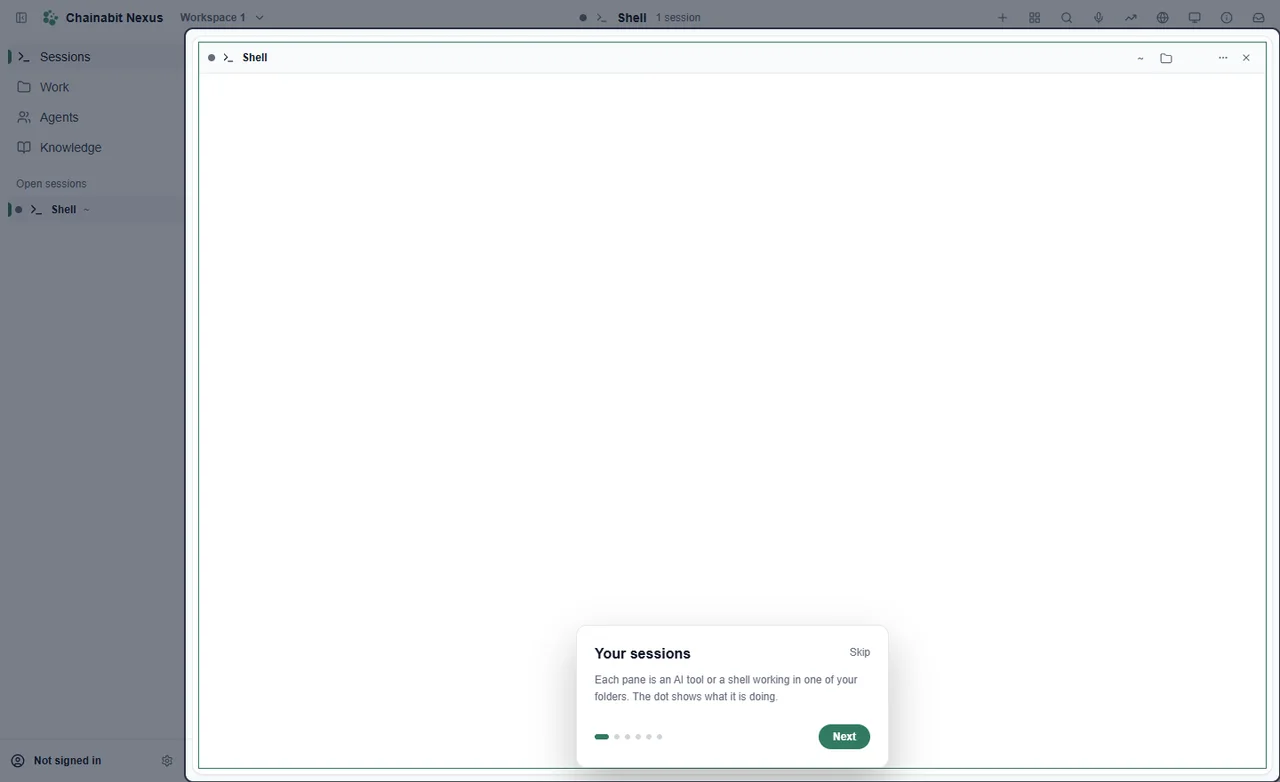
The tour has six stops: your sessions, the pane, the inbox, Work, search, and your first prompt. The last stop offers to start your chosen tool in your project with a first prompt already typed. Nothing is sent until you press Return. Choose Skip at any stop to leave the tour.
Run it again
Open Settings, then About. Show the setup again repeats the four steps and Take the tour again repeats the tour. The palette and the Help menu offer the same two actions.