
Your first project
Goal: start an agent in a folder of yours and give it a task. You need: Nexus installed and set up, one AI tool installed (this tutorial uses Claude Code), and a folder. A git repository gives you the most, because Nexus can then show changed files.
1. Open Work
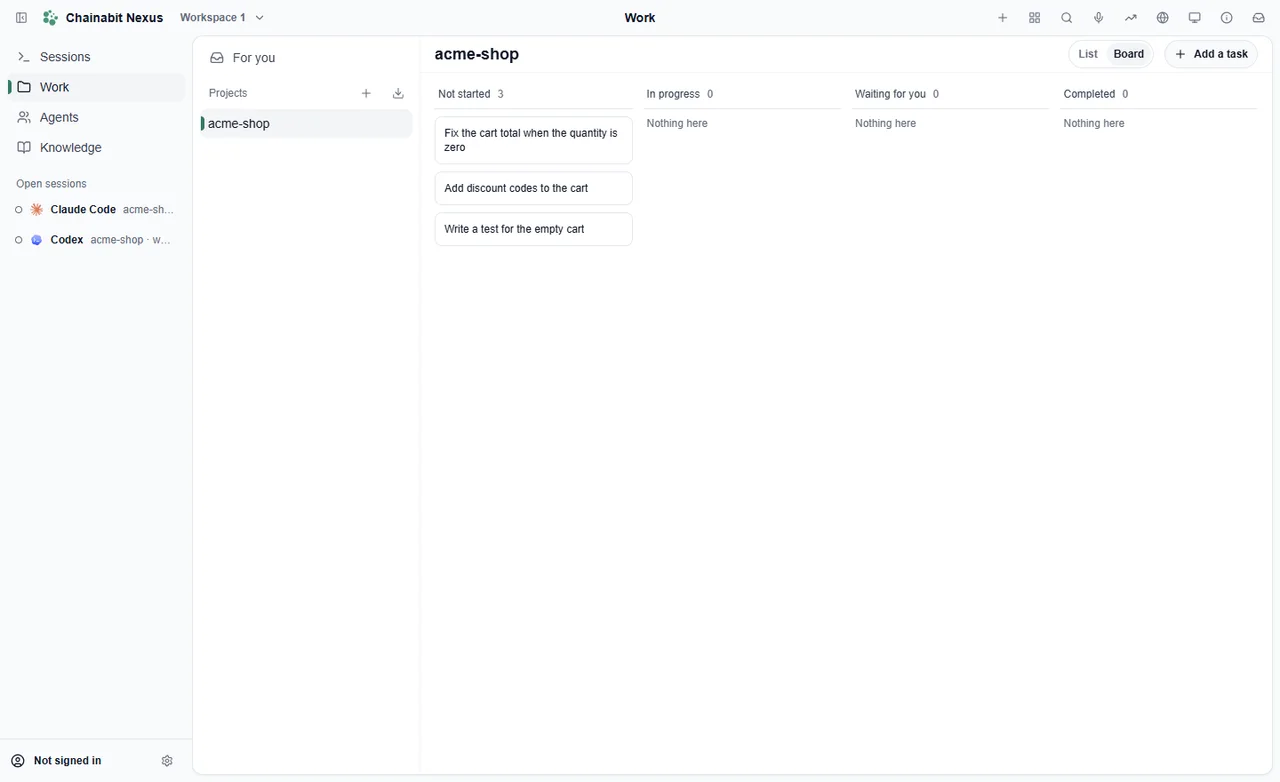
If you picked a folder during setup, Nexus already made a project for it. Choose Work in the sidebar. The project is listed under Projects.
To make another, choose the plus button next to Projects (New project), type a Name, pick a Folder and choose Create.
2. Add a task
Choose Add a task. Give it a Title, for example "Fix the cart total when the quantity is zero". The Note is shown to the agent working on it. You can also set a Priority and a Due date. Choose Add task. With a local project Nexus says it saved the task on this computer.
Use List or Board to switch the view. The board has four columns: Not started, In progress, Waiting for you and Completed.
3. Start an agent
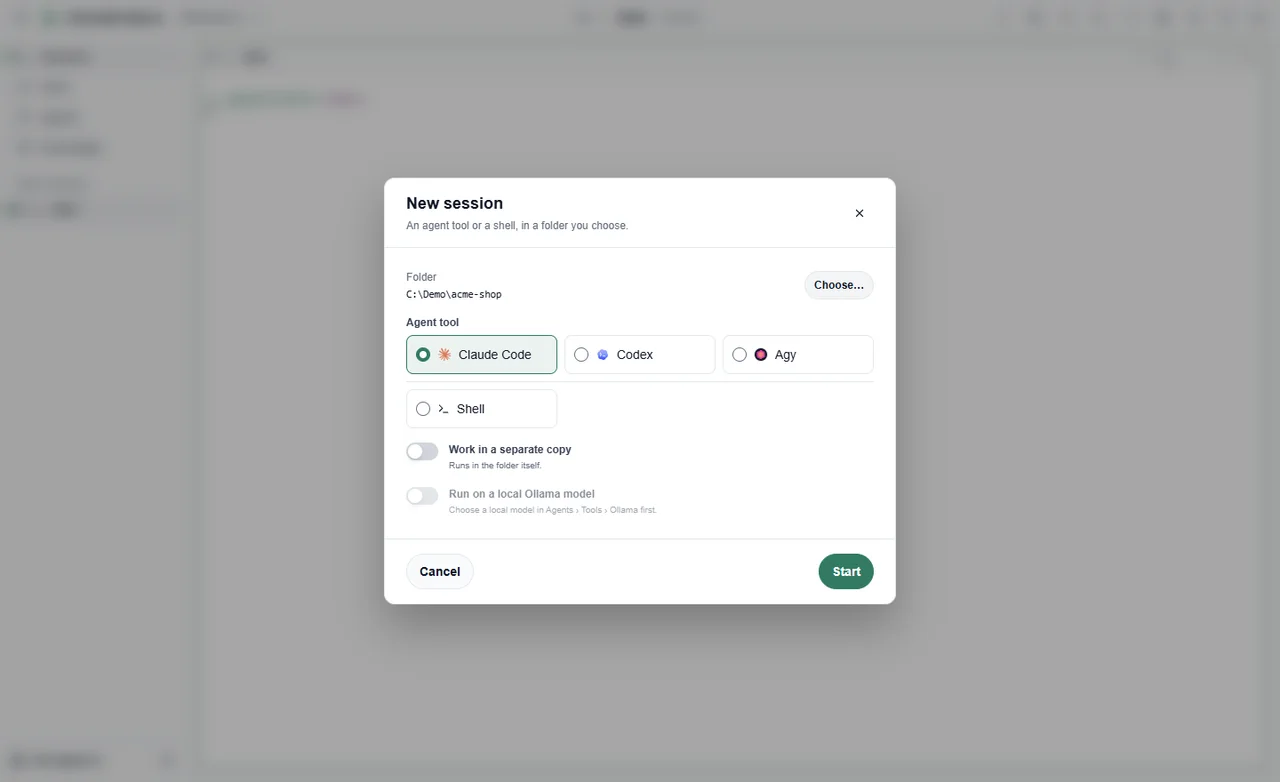
Choose New session in the toolbar (Ctrl+Shift+T). In the dialog:
- Choose the Folder.
- Pick the Agent tool: Claude Code, Codex or another, or Shell.
- Leave Work in a separate copy off for now. It is covered in Working copies and reviewing changes.
- Choose Start.
A tool may ask you to trust the folder the first time. That question comes from the tool itself and only you can answer it.
4. Read the pane
The pane header names the tool, the folder and the branch, and shows how many changes the folder has. The dot shows the state: starting, working, Waiting for you or done. When an agent needs you, the sidebar row says "needs you" and the Inbox badge counts it.
5. Give it a first prompt
Type in the pane, for example "Explain this project: what it does, how it is organised and how to run it." Nothing runs until you press Return.
Result
You have a project, a task and an agent working in your folder. Nothing is accepted automatically: when an agent asks you to accept work, it appears in the Inbox and under For you in Work. Next: run two agents side by side.