
Sign in and license
Nexus needs one of two things before you can run sessions: a license key, or a Chainabit account on a plan that includes Nexus. You choose during first-run setup and can change it later.
Use a license key
- On the welcome screen choose Only on this computer.
- Paste your key into License key. Use the eye button (Show license key) to check it.
- Choose Activate. You need an internet connection to activate.
Nexus confirms with "License activated." In Settings, Account, the License section then shows "Active on this computer" with a Deactivate button. Deactivating removes the license from this computer, for example before you move to another one.
Sign in with Chainabit
Choose Sign in with Chainabit. Nexus opens your browser and shows a code. Go to the address it shows, enter the code and confirm. Your password never reaches Nexus, and the window updates when you are done. The code shows when it expires; start again if it has.
If your plan does not include Nexus, Nexus says so and offers See plans. You can use a license key instead.
What your plan includes
Settings, Account shows your plan and its limits: sessions, agents and workspaces. When you reach a limit Nexus says, for example, "Your plan's session limit is reached." Manage plan opens your plan on chainabit.com.
When access lapses
If a license expires, is suspended, or your plan no longer includes Nexus, Nexus becomes read-only:
- Your sessions are kept but not shown, and they open again as soon as access returns.
- You can still Export your work from the Work section.
- A line at the top explains the reason. Check again asks again, and See plans opens the plans page.
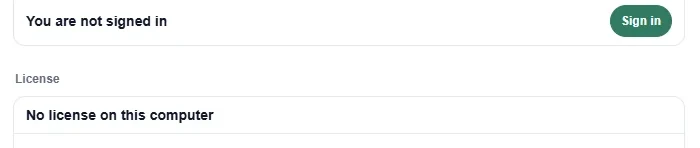
Sign out and different accounts
Sign out in Settings, Account signs this device out. Use a different account is offered on the access screen if you have more than one.
Privacy
Feedback you send from About goes to the Chainabit team and never includes terminal content.