
A tour of the window
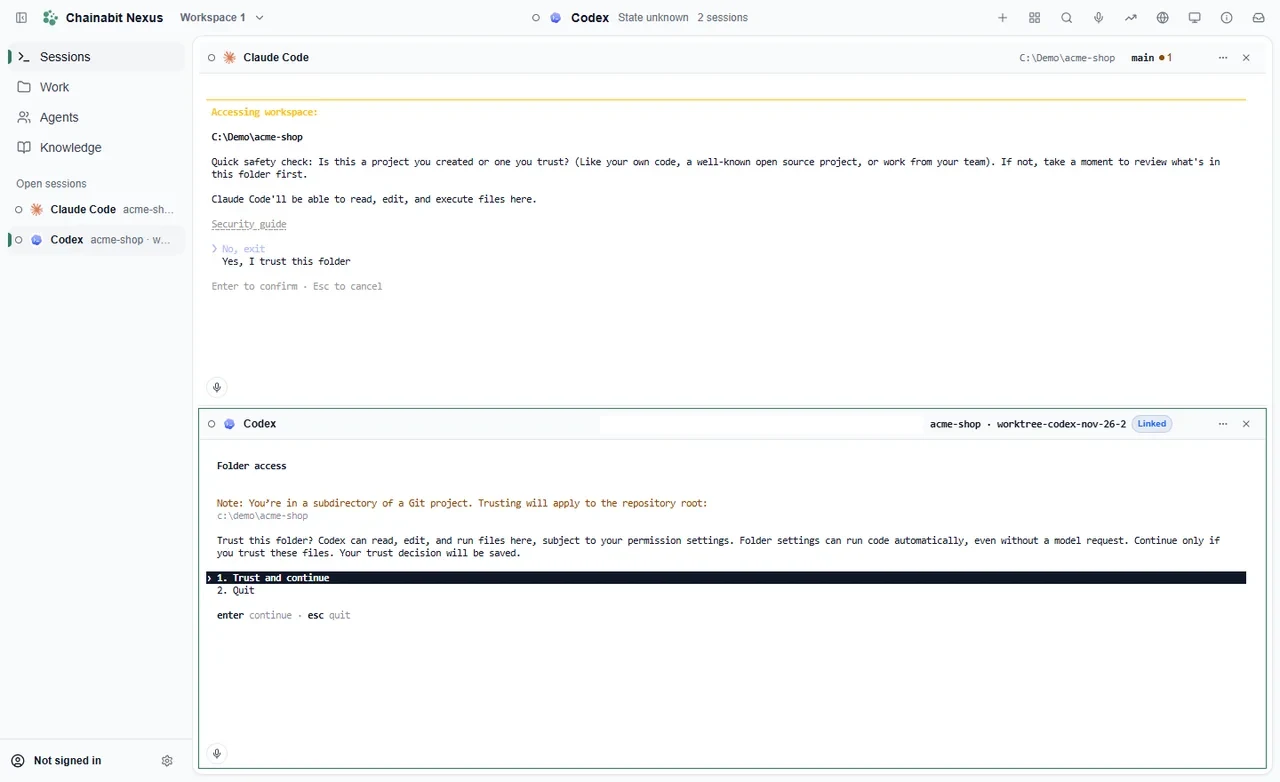
The sidebar
The sidebar lists the sections of the app:
- Sessions: the panes where agents and shells run.
- Work: your projects and their tasks.
- Agents: named agents, teams, AI tools, skills and plugins.
- Knowledge: the notes and pages of your tasks, by project.
Under Open sessions every running session has a row with a status dot. The gear at the bottom opens Settings, and the line next to it shows whether you are signed in. Collapse the sidebar hides it, and Show the sidebar brings it back.
The panes
Each pane is one agent or shell working in one folder. The header shows the tool, the folder and the branch, and a small dot shows what it is doing:
| State | Meaning |
|---|---|
| Starting | The tool is starting. |
| Working | The agent is busy. |
| Waiting for you | The agent asked a question or wants you to accept work. |
| Done | The agent finished. |
| Exited | The process ended. |
The More menu of a pane copies, pastes, renames, colors, pauses, restarts, stops, clears and closes it, and moves it to another window. See Sessions and panes.
The toolbar
Across the top: New session, Layout (Focus, 2, 3 or 4 columns), Search everything, Dictate, Insights, New browser pane, New window, Details and the Inbox. A workspace switcher sits next to the app name.
The inbox
The inbox shows what waits for you: questions from agents and requests to accept finished work. Its badge counts what is waiting. Waiting shows open items, Earlier shows past decisions, which are kept in the log on this computer, and notices are kept for 30 days.
Work
Work holds your projects and tasks. For you lists everything waiting for your review. See Work and tasks.
Search everything
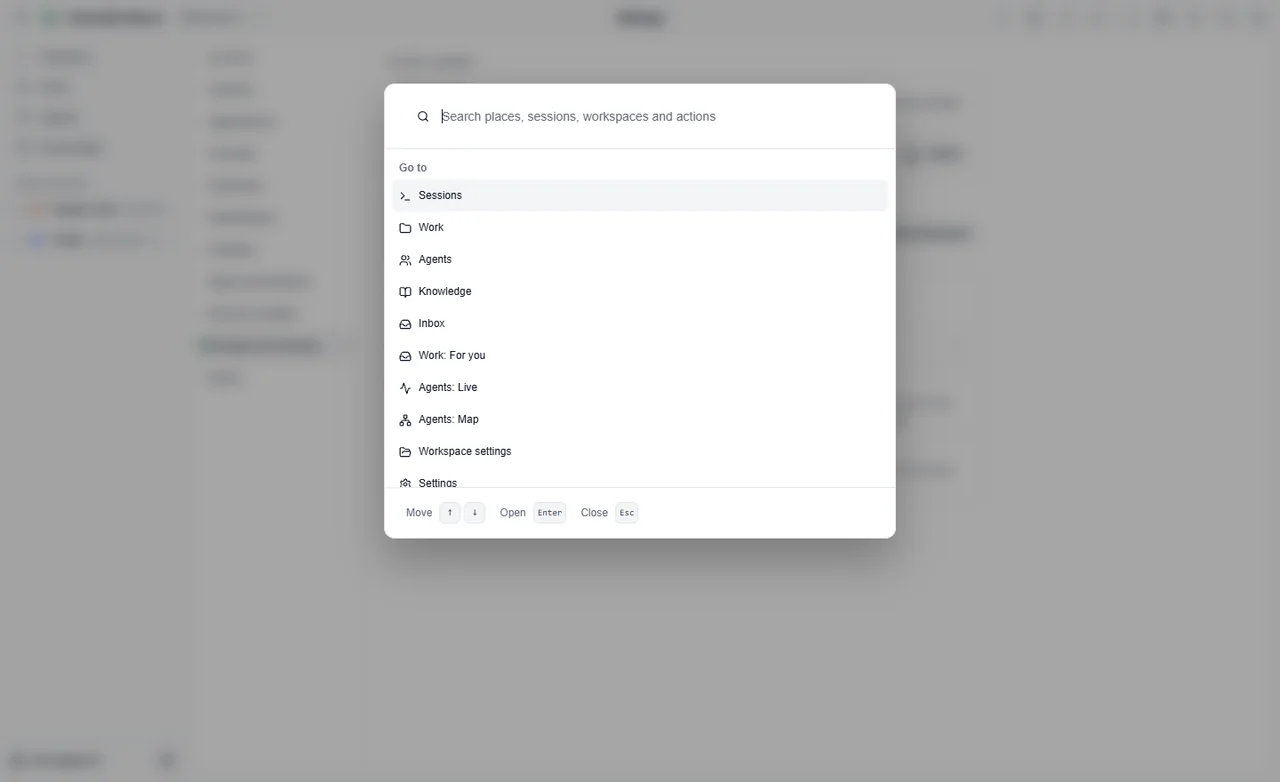
Press the search button or Ctrl+Shift+P (⌘P on macOS) to jump to a section, a session, a workspace or an action, such as changing the layout or closing all sessions.