
Install and first launch
You need a computer running Windows, macOS or Linux. To do real work you also need at least one coding tool installed, such as Claude Code or Codex. Nexus can start a plain shell without one.
Always current
Download links, system requirements and release notes live on the Chainabit Nexus product page and the download page. Package formats can change between releases, so check there for anything version-specific.
Windows
- Download the Windows installer from the download page.
- Run it and follow the prompts.
- If Windows SmartScreen shows "Windows protected your PC", choose More info and then Run anyway, but only for a file you downloaded from the Chainabit page.
- Open Chainabit Nexus from the Start menu.
Windows 11 includes what Nexus needs; the installer sets up anything missing.
For git features (working copies, changed files and diffs) install Git for Windows and make sure git is on your PATH.
macOS
- Download the disk image (
.dmg) from the download page. - Open it and drag Chainabit Nexus into your Applications folder.
- Open it from Applications. macOS may take a moment to check the app the first time. If it refuses to open, read the message it shows and the release instructions on the download page.
- If you use dictation, macOS asks for microphone access the first time you dictate. Nexus listens only while you dictate or test the microphone.
Linux
- Download the Linux package from the download page.
- Make it executable and run it.
- Start Chainabit Nexus from your application menu.
First launch
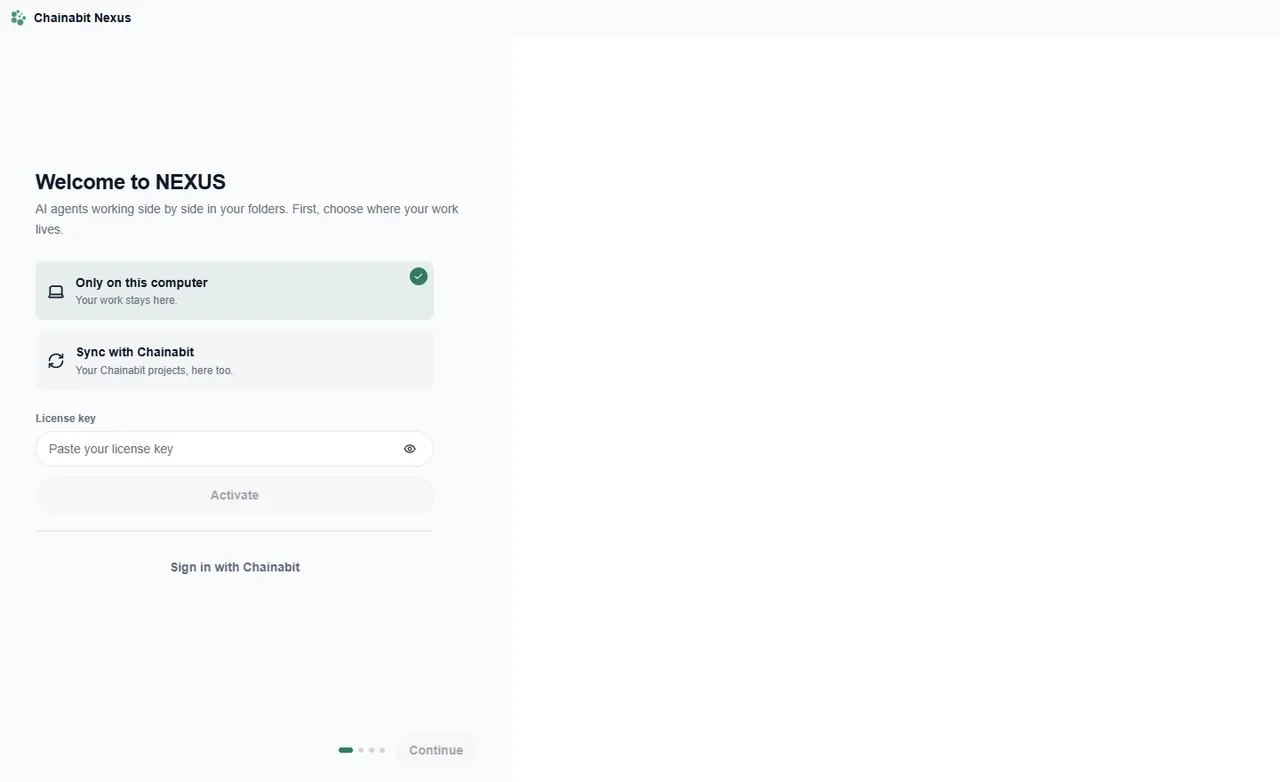
The first time you open Nexus it shows the first-run setup and then a short tour. You will be asked how your work should live, which AI tools to offer, and which folder to start with. Nothing is sent anywhere until you choose to sign in or sync.
Updates
Updates arrive inside the app.
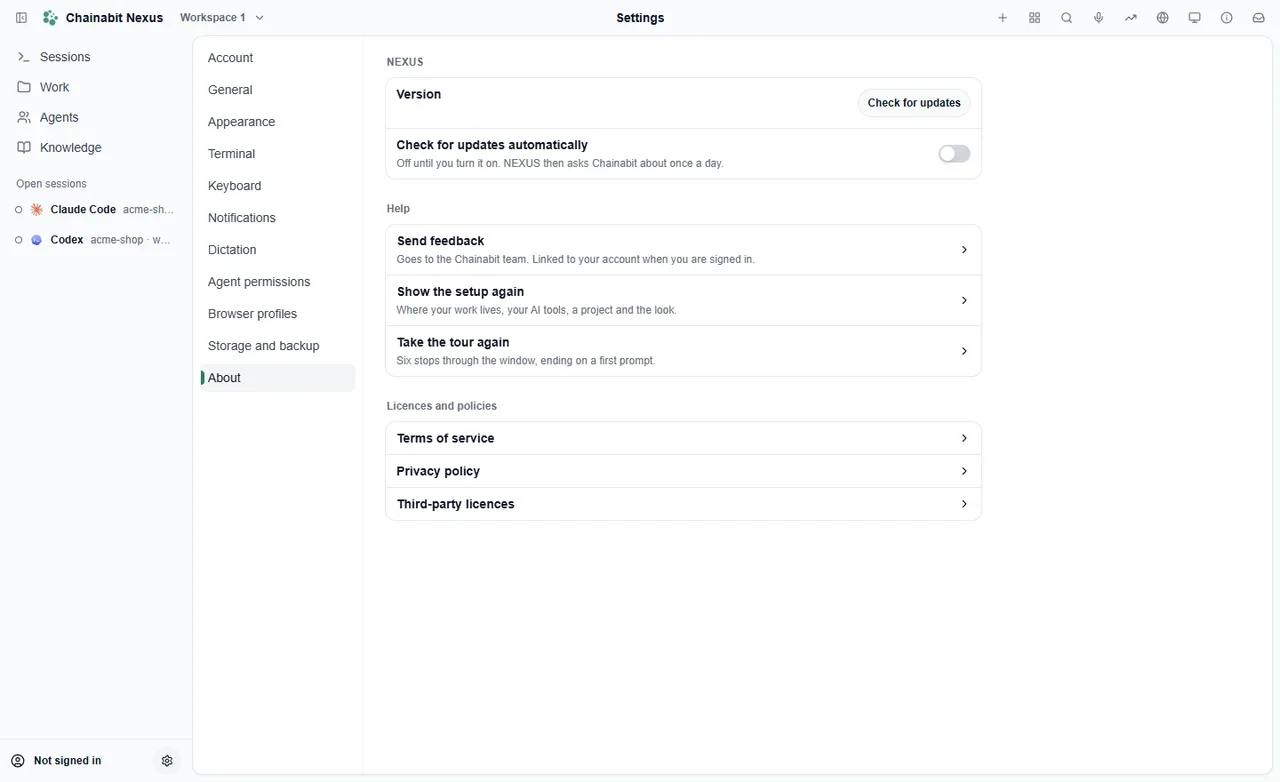
- Open Settings and choose About. The Version row shows your version and a Check for updates button.
- Check for updates automatically is off until you turn it on. When it is on, Nexus checks about once a day.
- When a version is available, Nexus shows its release notes and an Install and restart button. Nexus downloads the new version, installs it and restarts. Running sessions stop when Nexus restarts, so finish or save work in your agents first. Choose Not now to keep working; the update stays available.
- If you allow notifications, Nexus can tell you when an update is ready while its window is in the background.
Uninstall
Remove Nexus the way you remove any app on your system. Your project folders are never touched. Nexus's own data, such as settings and the session list, stays in its data folder until you delete it; Settings then Storage and backup shows where it is.