
Run Claude Code and Codex side by side
Goal: two agents working on the same repository at once without editing the same files. You need: Claude Code and Codex installed and ticked in the setup (or in Agents, AI tools), and a git repository.
1. Start the first agent
New session, choose the repository folder, pick Claude Code and choose Start.
2. Start the second one in the same folder
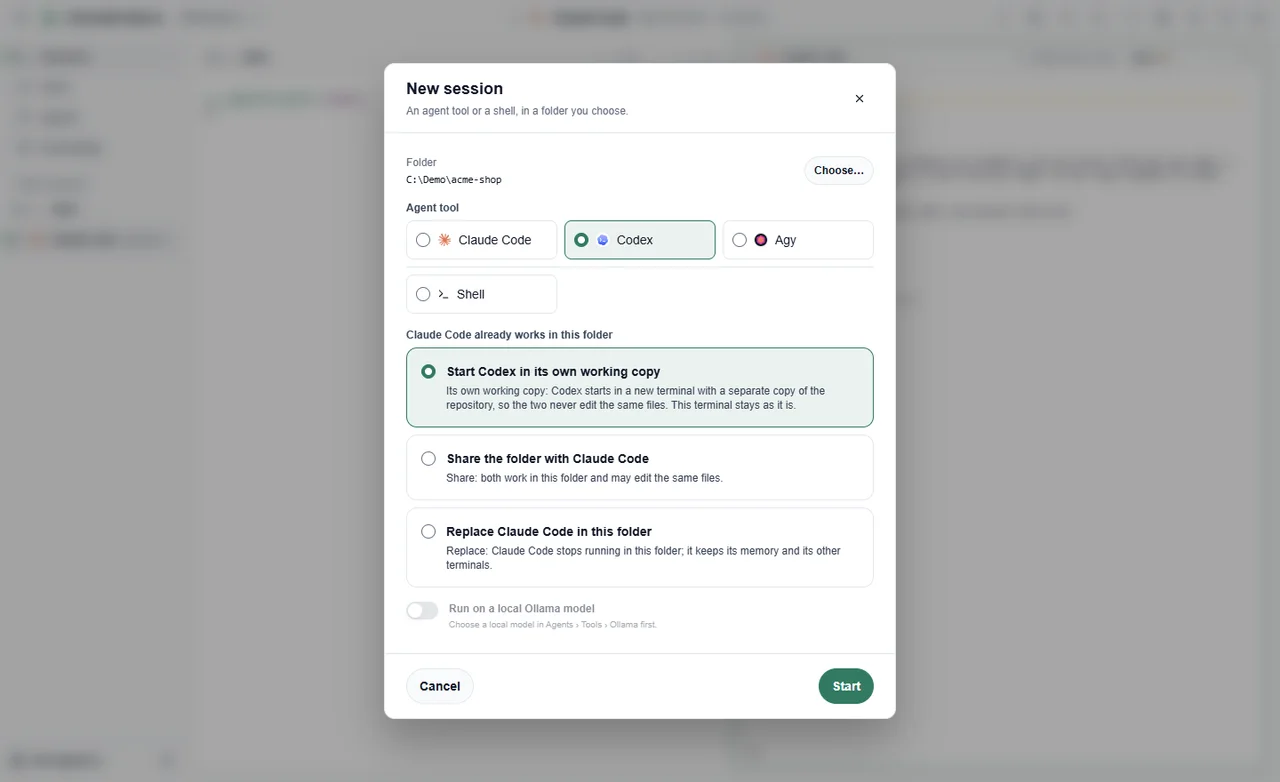
Open New session again, choose the same folder and pick Codex. Because Claude Code already works there, Nexus asks what to do:
- Start Codex in its own working copy (selected by default): Codex gets a separate copy of the repository on a branch of its own, so the two never edit the same files. The first terminal stays as it is.
- Share the folder with Claude Code: both work in the same files and may overwrite each other.
- Replace Claude Code in this folder: Claude Code stops here. It keeps its memory and its other terminals.
Keep the default and choose Start.
3. Watch both
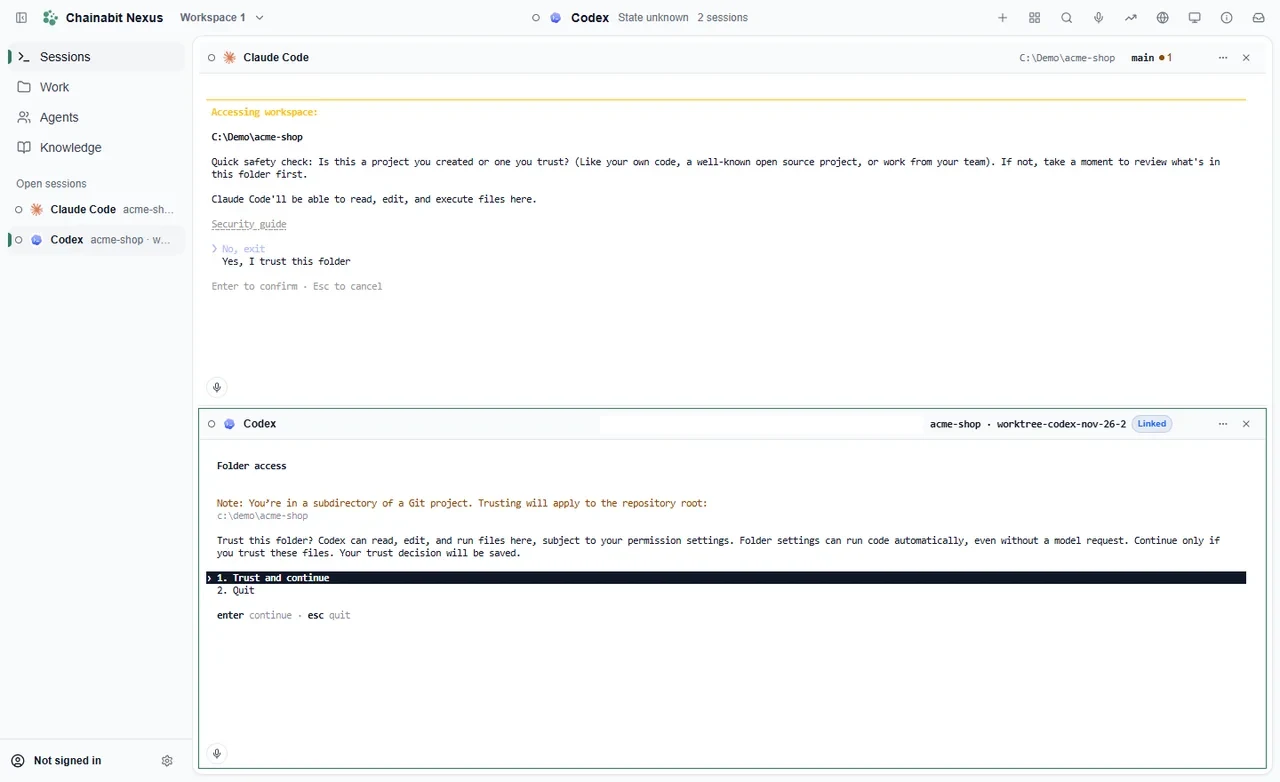
Each pane header shows its branch. The Codex pane shows a Linked badge and a branch such as worktree-codex-…, which marks it as a linked working copy. Its files live in a separate folder, so your main folder is not changed by Codex.
4. Arrange the window
- Layout in the toolbar sets Focus (1 panel), 2, 3 or 4 columns.
- Drag a pane by its header to swap places.
- Focus Mode (Ctrl+Shift+J) shows one pane at full size, and the same shortcut leaves it.
- Ctrl+Shift+1 to 9 focus a pane by number.
5. Bring the work together
When Codex finishes, review its branch as described in Working copies and reviewing changes. Nexus never merges branches for you.
Result
Two agents run in one window and cannot overwrite each other. If a tool shows Not installed, see Troubleshooting.