
Keyboard shortcuts and window settings
The modifier key
On macOS shortcuts use ⌘. On Windows and Linux ⌘ becomes Ctrl+Shift so that the shell keeps plain Ctrl.
Default shortcuts
| Action | Windows and Linux | macOS |
|---|---|---|
| New session | Ctrl+Shift+T | ⌘T |
| Focus pane 1 to 9 | Ctrl+Shift+1…9 | ⌘1…⌘9 |
| Next pane | Ctrl+Shift+] | ⌘] |
| Previous pane | Ctrl+Shift+[ | ⌘[ |
| Move to the sidebar | Ctrl+Shift+0 | ⌘0 |
| Focus Mode on the pane, or leave it | Ctrl+Shift+J | ⌘J |
| Collapse the pane to the strip | Ctrl+Shift+Alt+↓ | ⌥⌘↓ |
| Rename the pane | F2 | F2 |
| Clear the pane | Ctrl+Shift+K | ⌘K |
| Close the pane | Ctrl+Shift+W | ⌘W |
| Search everything | Ctrl+Shift+P | ⌘P |
| Find in the pane | Ctrl+Shift+F | ⌘F |
| Larger or smaller terminal text | Ctrl+Shift+= or - | ⌘= or ⌘- |
| Default terminal text size | Ctrl+Shift+Alt+0 | ⌥⌘0 |
| 2 Columns | Ctrl+Shift+D | ⌘D |
| 3 Columns | no shortcut (use the toolbar or the palette) | ⇧⌘D |
| 4 Columns | Ctrl+Shift+Alt+D | ⌥⌘D |
Change a shortcut
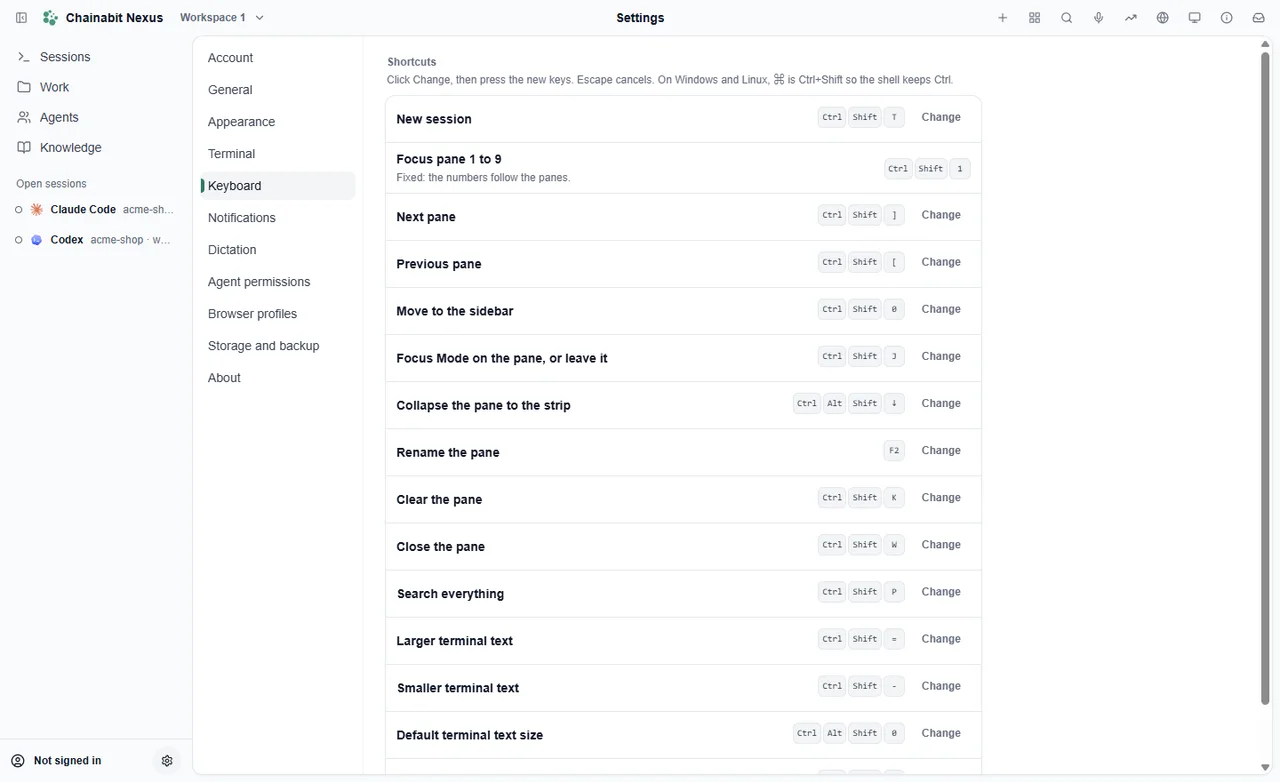
Settings, Keyboard. Choose Change on a row, press the new keys, or press Escape to cancel. Nexus refuses keys that already belong to another action ("That is already …") and keys without ⌘ or Ctrl, so typing in a pane still works. The pane numbers are fixed. Reset all restores the defaults.
Window at launch
Settings, General, Window, Window at launch:
- Full screen
- Fill the screen
- Last size and position
Ask before quitting while sessions run (on by default) warns you, because quitting stops every process in the panes, agents at work included.
Other window features
- New window opens another window of the same workspace. Move a session with Move to another window in its menu; it keeps running.
- The workspace switcher creates, renames and removes workspaces. A workspace groups folders, sessions and defaults. Removing one closes its sessions; your folders stay on disk.
- Appearance and Terminal hold theme, font and text size.